
Save AI Notes in Consult
About this task
Procedure
-
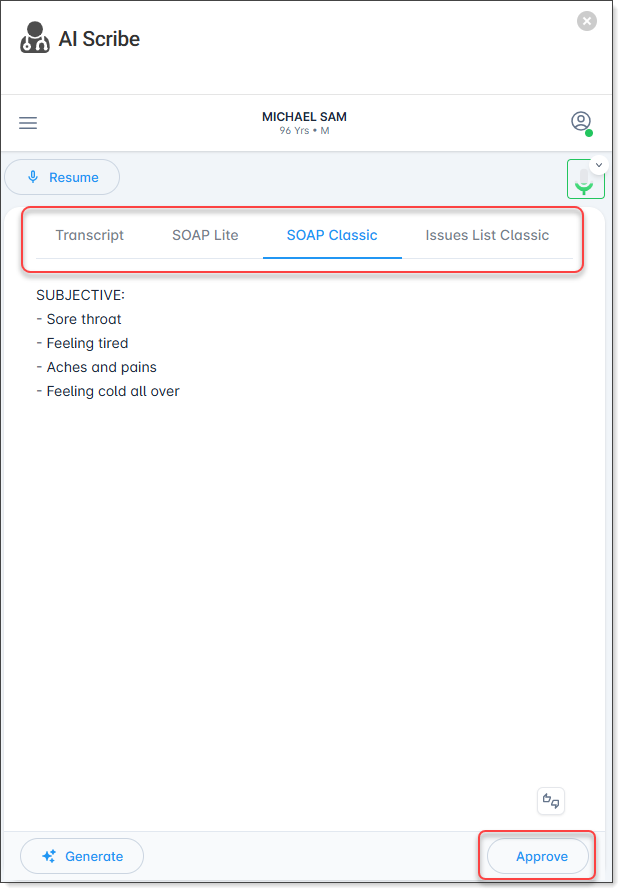
Select the notes you want to save to the Consult
pane.
-
Click Approve.
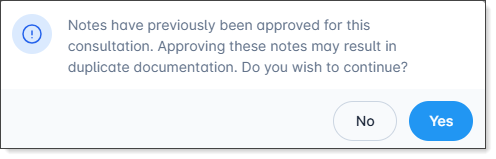
Note:If the notes you are approving have previously been approved, a duplicate warning is displayed.
-
Click Yes to save to the Consult.
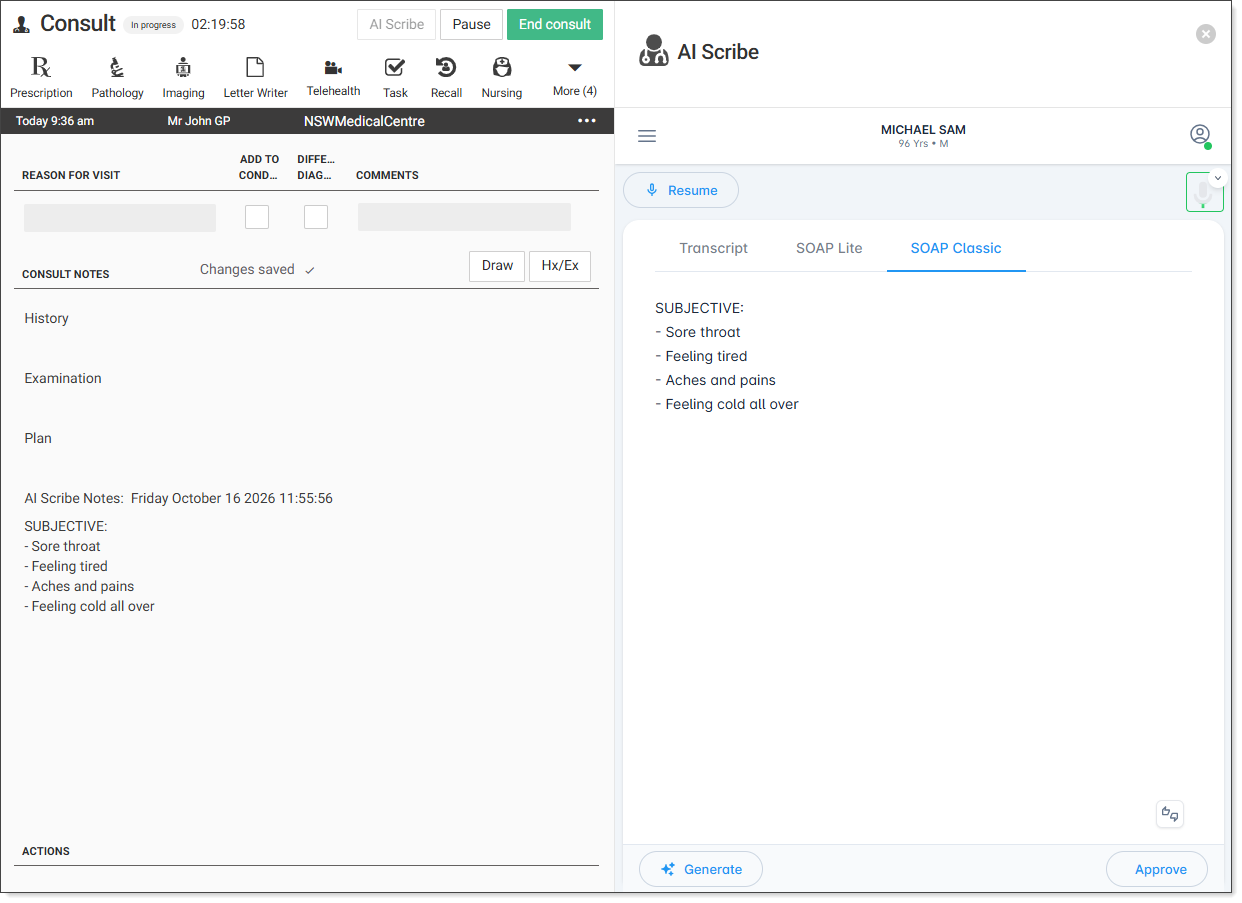
After the note is saved, it is displayed in the Consult screen. If there are existing notes, the new notes are appended to the original consult notes.
What to do next
- Resume - resume the recording, the new notes are appended to the original consult notes
- Generate - open the clinical notes menu to generate another note, see Generate AI Scribe notes
- Provide feedback - select
 (feedback icon) to provide feedback for the quality of the notes
- Approve - push another generated notes to Helix
- X - close the AI Scribe panel and end the AI Scribe transcription.