
Using AI Scribe
Using AI Scribe to capture consultation notes in Helix.
Before you begin
Procedure
Capture consultation notes using AI Scribe:
-
Select
 .
The Consult panel is opened on the right-hand side of the screen.
.
The Consult panel is opened on the right-hand side of the screen.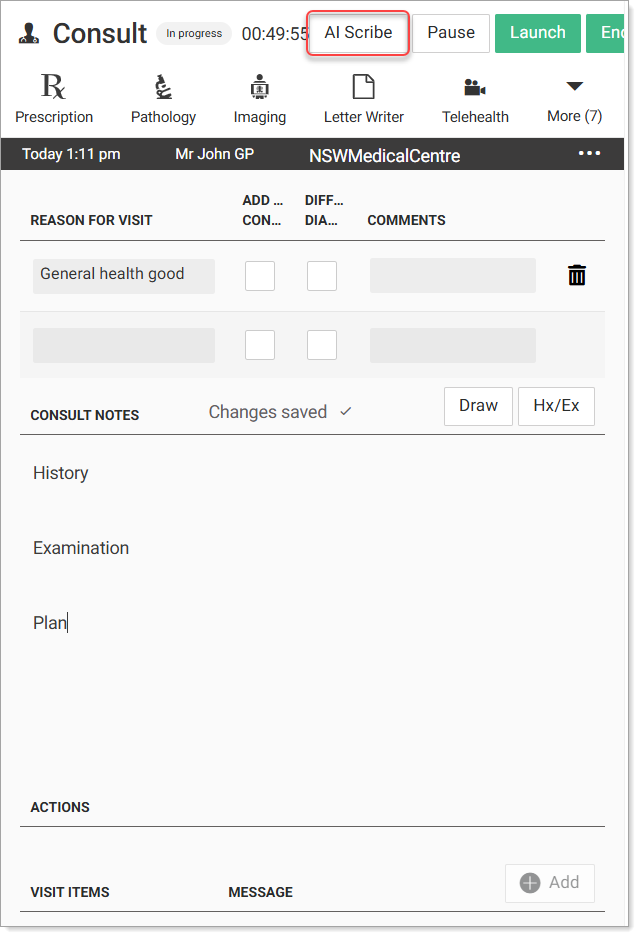 Note:AI Scribe is available only during an active consult for a single patient.
 -
Select AI Scribe.
The Clinical Virtual Assistant is displayed.

Once loaded, the AI Scribe window is displayed on the right-hand side of the screen.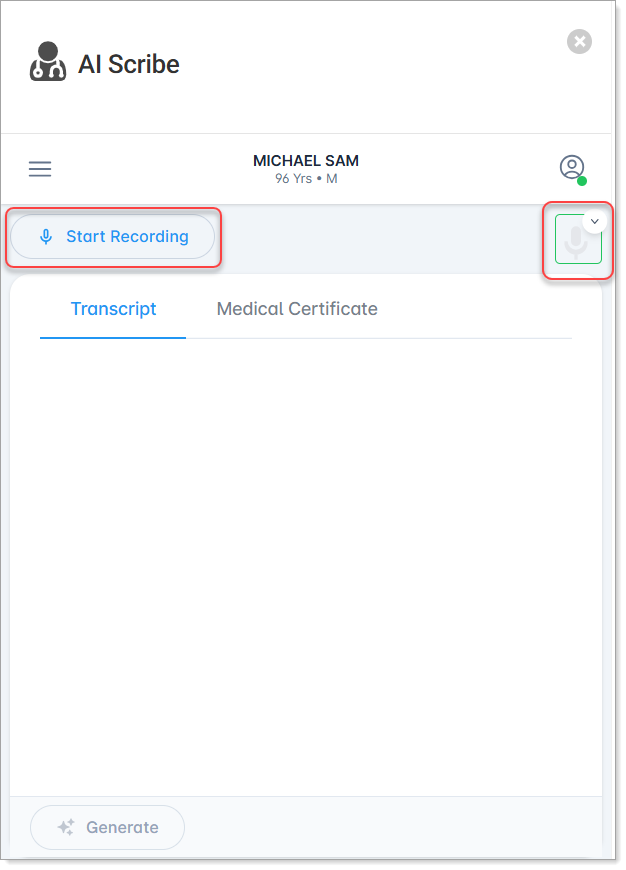
Tip:Allow microphone permissions in your web browser when prompted. -
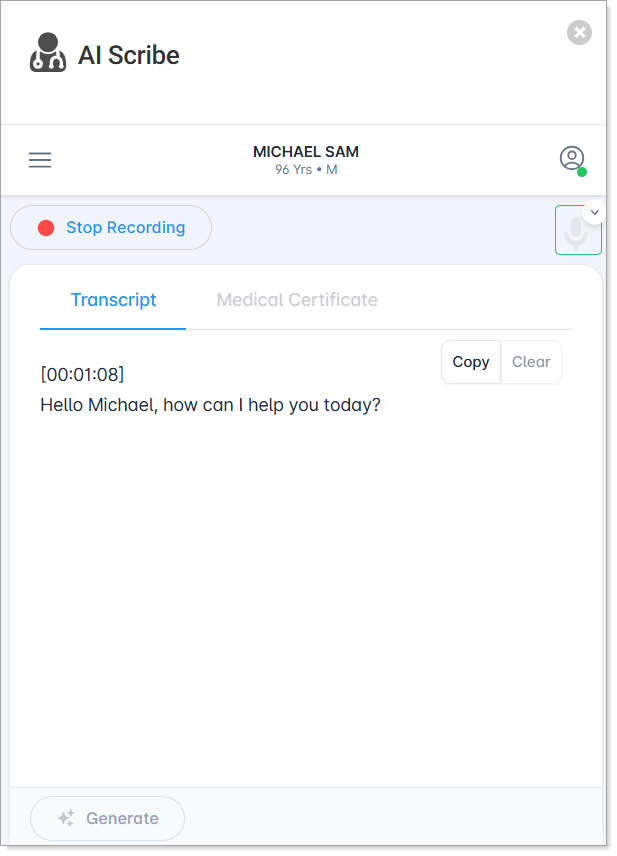
Select Start Recording.
AI Scribe starts transcribing the consultation in the AI Scribe screen.
Tip:While AI Scribe is in progress, you can navigate to other areas of Helix without interrupting the AI Scribe transcription. When you open another window, AI Scribe is minimised and displayed as a tab on the right-hand side of the screen with an AI Scribe is in progress indicator displaying at the top and bottom right of the screen to show that AI Scribe continues uninterrupted in the background. Select the AI Scribe tab or View button to return to the AI Scribe screen.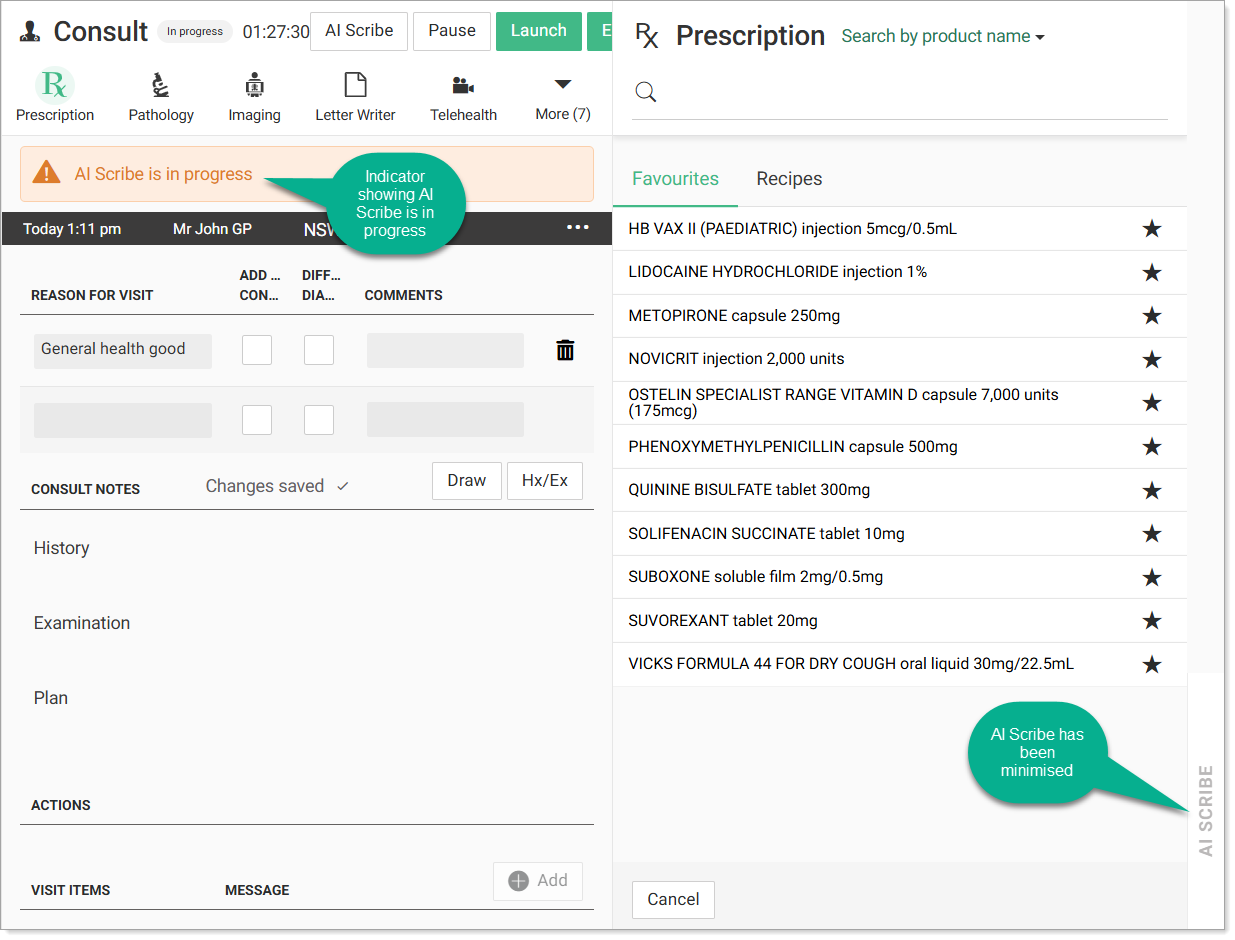
-
While in pause mode, you can perform the following
actions:
- Resume - resume the recording, the new notes are appended to the original consult notes
- Generate - generate clinical notes, see Generate AI Scribe notes
- Approve - push the generated notes to Helix, see Push notes to Helix
- X - close the AI Scribe panel and end the AI Scribe transcription.

For more information about using AI Scribe, see the AI Scribe user guide.