
Edit Recalls from the Message Centre
Practice Managers and Administrators can send SMS recalls or letters, record comments about contact attempts, repeat recalls, complete recalls or defer recalls from the Message Centre.
About this task
Permissions:
- View Recalls
- Update Recalls
- View Recall Medical Notes
Procedure
To edit recalls in the message centre:
-
In the
toolbar, select
 Message Centre > Recalls.
-
If required, filter or sort the list of recalls:
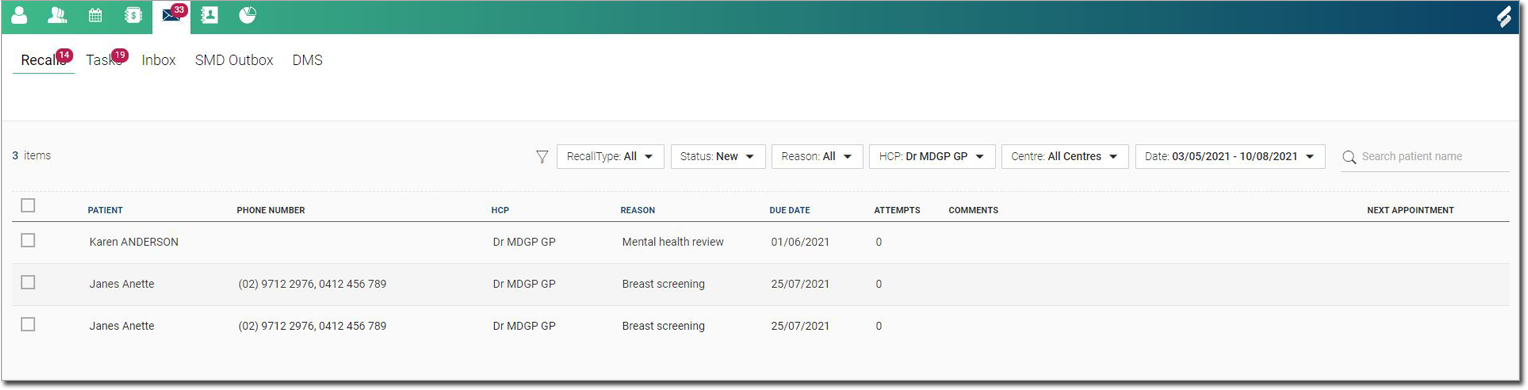
- Sort recalls by data type by selecting the column header on which you want to sort.
- Filter the recalls displayed by:
- Recall Type - display only urgent recalls if required.
- Status - display recalls based on their status, either: New, Contacted, Sent or Closed
- HCP - display recalls for all healthcare practioners, or only the selected healthcare practioner.
- Centre - if available, display recalls for other centres.
- Date - select a date range to list only those recalls that are due during the selected period.
-
In the Recall panel, make the required changes.
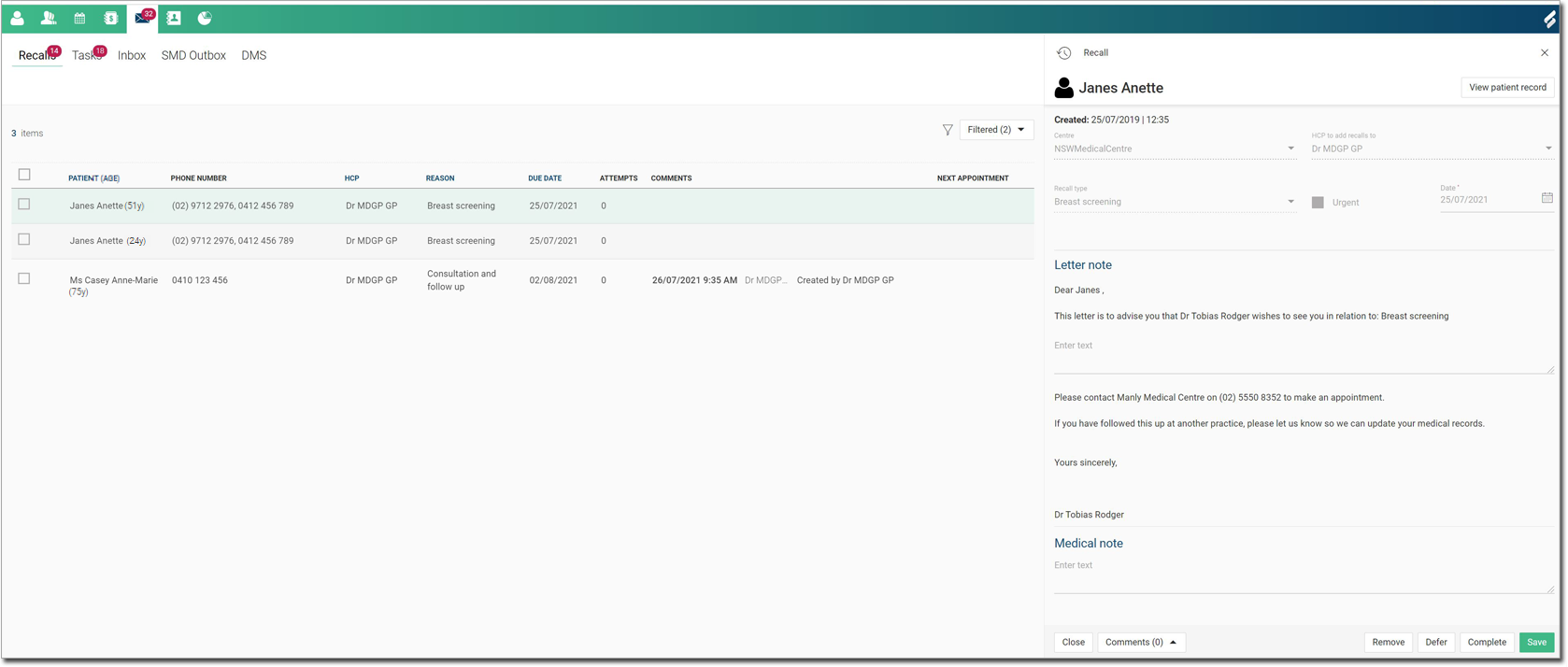
Tip:You cannot edit the recall reason, urgency, or date from the Message Centre. This content can only be edited by a practitioner from within the patient's record.- Comments - add comments about the recall.
 Success - record successful contact attempts for
an urgent recall.
Success - record successful contact attempts for
an urgent recall.  Failed - record failed contact attempts for an
urgent recall.
Failed - record failed contact attempts for an
urgent recall.- Remove - delete the recall. Available only to clinicians.
- Defer - keep the recall open & defer it the recall. The recall remains in the Timeline and in the filtered list of new recalls in the Message Centre. Available only to clinicians.
- Complete - indicate that the recall has been successfully made. The recall is removed from the patient’s Timeline and is added to the filtered list of contacted recalls in the Message Centre. Available only to clinicians.