
Generate a Recall from the Patient's Record
Create a recall during a consult from the patient's record.
About this task
Create a recall from the Consult panel.
Procedure
To add a recall:
-
From the
 Patient Search or
  Patient Queue, select a patient and click
  Consult.
-
In the Consult panel, select to open the Recall panel.
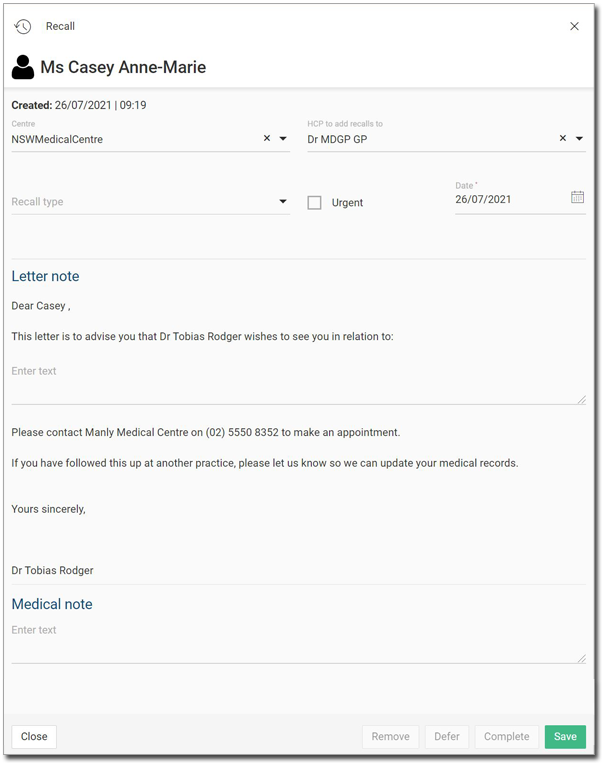
-
From the Recall type list, select a reason for the
recall.
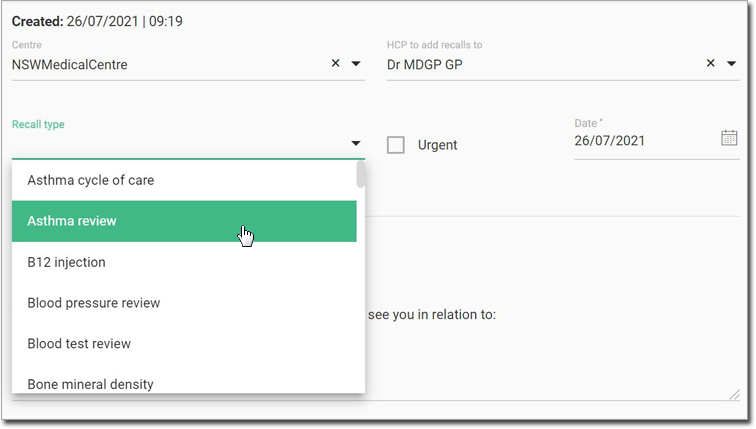
-
If required, to notify the patient immediately, set Urgent.
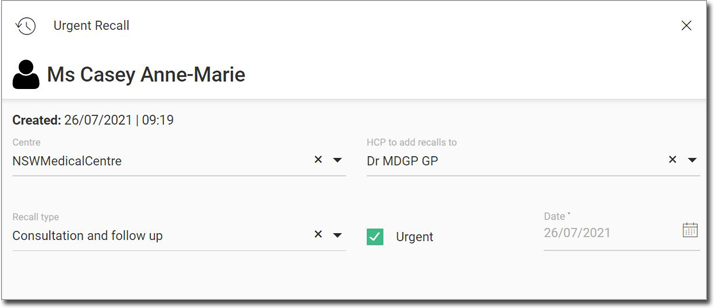
- The title changes to read Urgent Recall.
- The recall date defaults to the current date and cannot be modified.
-
If it is not an urgent recall, from the Date calendar, set
an interval or a specific date on which the patient is to be notified of the recall.
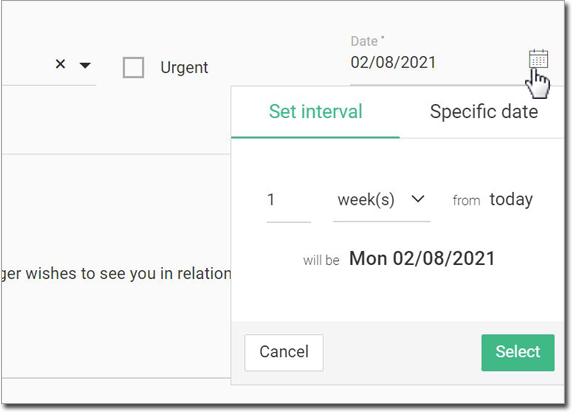
Tip:Default recall intervals depend on the type of recall reason selected and can be customised for your health centre. -
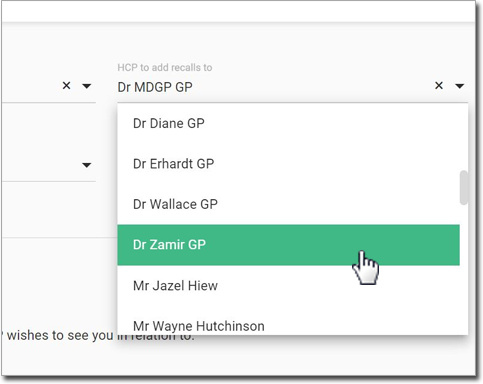
By default, recalls are created for the user currently logged in. However, recalls
can be assigned to any Health Care Professional with practitioner-related
permissions. To assign the recall to another practitioner, from the HCP to
add recalls to list, select the preferred practitioner.
-
Depending on the recall type:
- In the Medical Note field, enter any required information.
- Click
 Letter note and complete a recall letter.
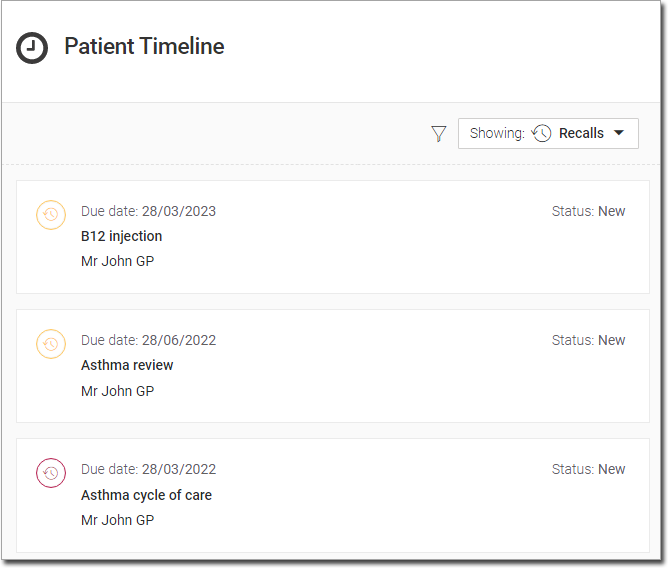
Results
What to do next
From the patient's Timeline or from the Message Centre, you can now action the recall. For more information, see Complete a recall.