
Create an Event Summary
Create an Event Summary and upload it to My Health Record.
About this task
| Author on My Health Record | Role |
|---|---|
| General Medical Practitioner |
|
| Nurse Practitioner |
|
| Specialist Physicians nfd (not further defined) |
|
| Health Therapy Professionals nfd (not further defined) |
|
Procedure
To create and upload an Event Summary:
-
In the
 Health Summary, click
  My Health Record.
-
In the My Health Record panel, to create a new Event
Summary, click Create and select Event
Summary from the Select Summary
list.
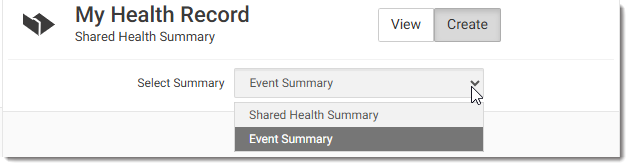
Tip:The Shared Health Summary is selected by default. -
Information from the patient's clinical record is listed. Select the
information you want to include or deselect the information you want to
exclude.
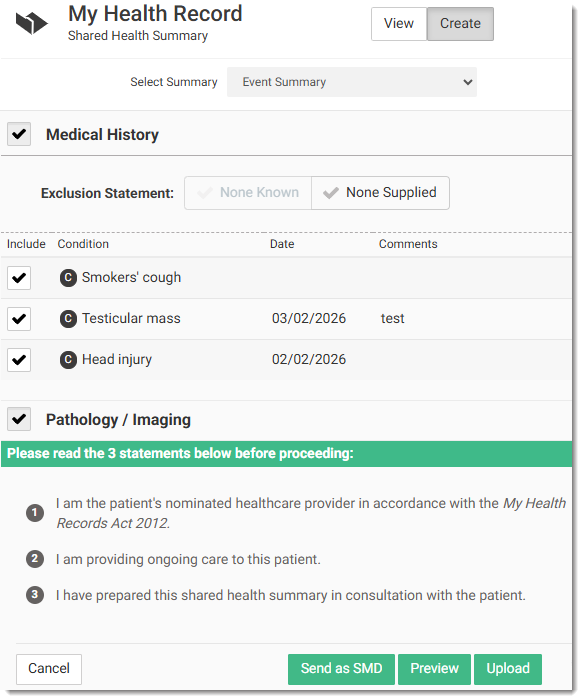
Note:The information displayed may vary depending on what is available in the patient’s clinical record. Fields shown in grey are not available and cannot be selected.Note:Non‑standard Unicode symbols (such as ↑, ↓, ✓, ≤, ≥) and emojis are not supported. If these characters are included in the Clinical synopsis, they may appear as a question mark (?) in the Event Summary. Before creating or uploading an Event Summary, ensure all special Unicode characters and emojis are removed and replaced with standard text. -
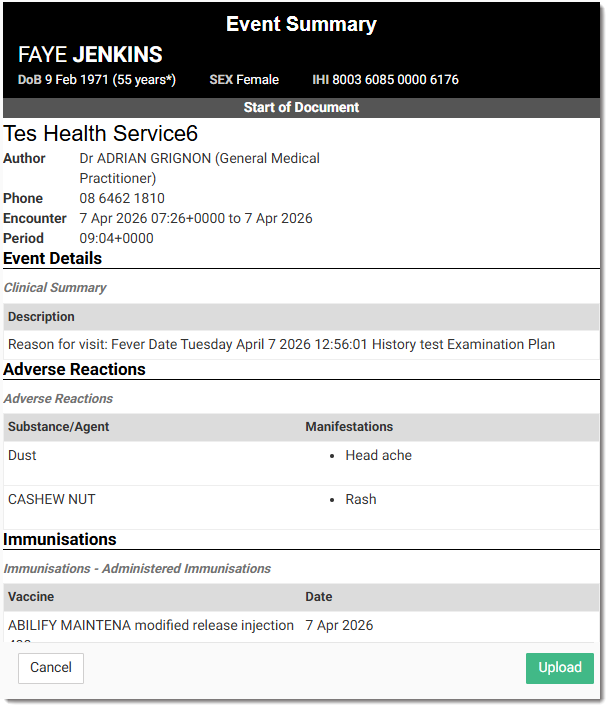
To review the Event Summary before sending or uploading it, click
Preview.
Results
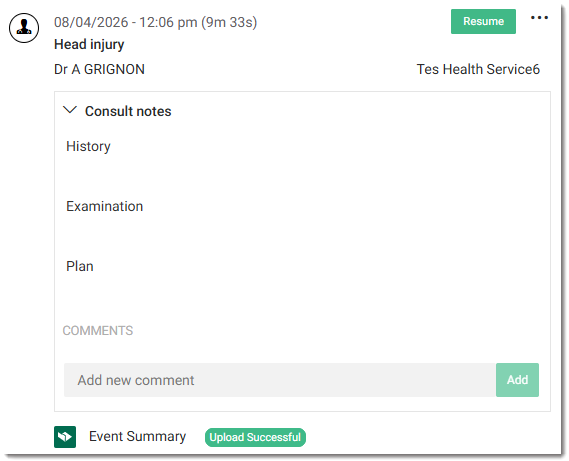
The new Event Summary is added to the list on the View panel and is displayed in the Actions section with a status:
Upload Successful,
Failed or
Delivered.
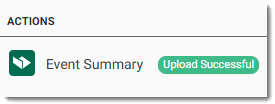
When the consult is complete, the Event Summary moves from the Actions section to the
Patient Timeline.
What to do next
To open a read-only copy of the Event Summary from either Actions or  Patient Timeline, click Event
Summary.
Patient Timeline, click Event
Summary.
View the Event Summay from the My Health Record. For more information, refer to View panel.