
Send HealthLink SmartForms
Send eReferrals and other forms from Helix using HealthLink SmartForms.
Before you begin
Permissions:
- Update Users
- Update Centre Settings
About this task
Procedure
To send a HealthLink SmartForm:
-
From the
 Patient Search or
  Patient Queue, select a patient.
-
Click
 Consult and start a consult for a patient.
-
From the Consult menu, click
 Letter Writer.
-
In the Letter Writer section, select the
 SmartForms
 link. You are redirected to HealthLink SmartForms portal.
-
From the , select the required SmartForm
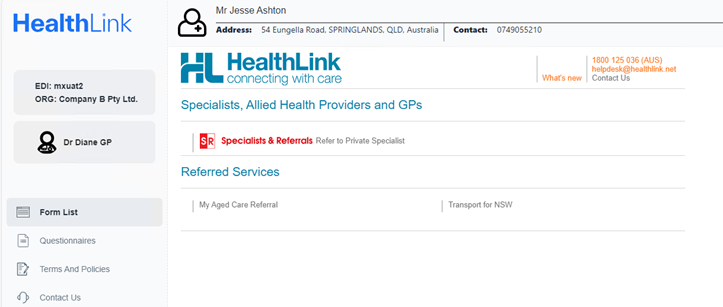
For referrals forms, search and select an appropriate specialist name. Some SmartForms require a specific service to refer to, select one and click Continue.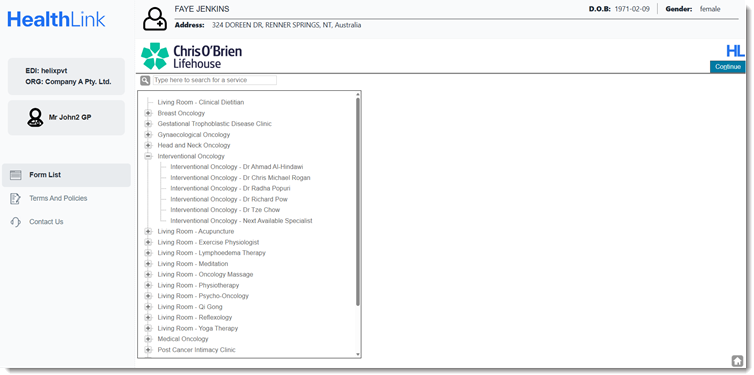
-
Biographic and clinical details from the patient's record are added to the
SmartForm automatically. Review and update these details if required. Also add
any other required information (fields with *) such as Reason for
Patient Referral.
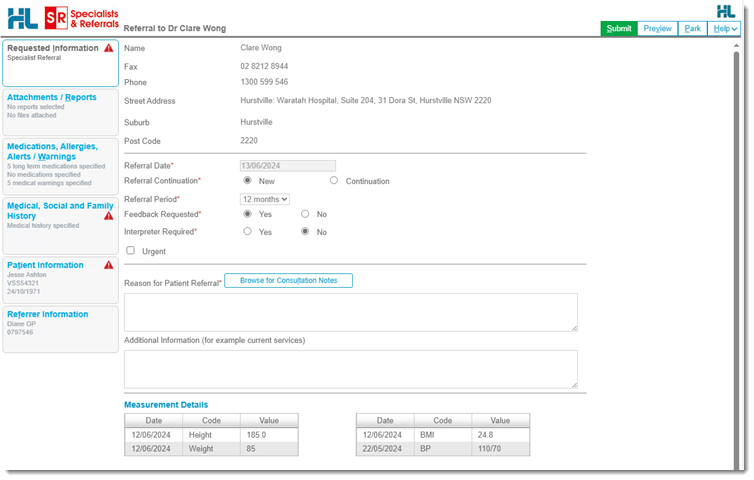
- In the Attachments / Reports tab, browse and attach any relevant documents or reports. For more information, see Attach Documents or Reports.
- Before you can submit a SmartForm, all errors indicated with an
 Error must be addressed.
Results
What to do next
In the consult panel:
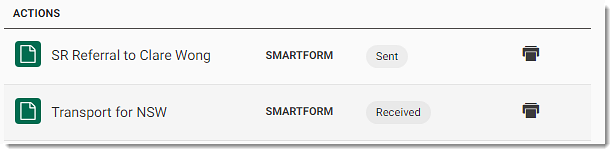
- To view a SmartForm, select it from the Actions
section. The form is displayed in the Preview window,
where you can print or download it as required.Tip:Alternatively, click
 Print to print a SmartForm.
 - If required, update the consultation details and click End consult.
After you have completed the consultation, the SmartForm is added to the Patient Timeline.
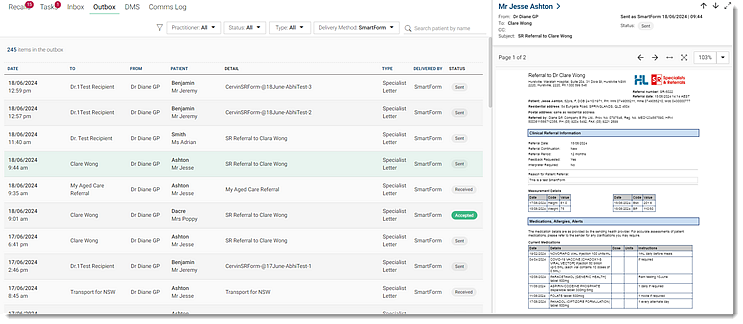
View the status of the SmartForm in the  Message Centre > Outbox tab. Select SmartForm from Delivery
Method list to see all the SmartForms. For more information, see
Outbox.
Message Centre > Outbox tab. Select SmartForm from Delivery
Method list to see all the SmartForms. For more information, see
Outbox.
Message Centre > Outbox tab. Select SmartForm from Delivery
Method list to see all the SmartForms. For more information, see
Outbox.Tip:
If a SmartForm status does not match with the
Patient Timeline, refresh the
Outbox section.
The recipient of a SmartForm may reject it. To view a specialist's response to a rejected SmartForm, select . For more information, see Action Expired or Rejected HealthLink SmartForms.