
Unsuccessful Patient Claims
Fix unsuccessful claims and resubmit them to Services Australia.
About this task
 Pending list. Users with the View Medicare exceptions and
retransmit permission can open a claim, resolve any problems and retransmit the
claim to Medicare.
Pending list. Users with the View Medicare exceptions and
retransmit permission can open a claim, resolve any problems and retransmit the
claim to Medicare.Procedure
To update and resubmit a claim:
-
Select
 Claiming, Banking, and Payments > Patient Claims from the menu.
-
In the Patient claims tab, select Pending. All pending patient claims are displayed chronologically.

Filter the list of results by:- Visit Id - view particular visit ID and its associated claim ID.
- Centre - if you have more than one centre, select the required centre from the list.
- HCP - view the required HCP.
-
To view the error details, for a patient claim, select it in the list.
The claim details are displayed in the
 Visit panel.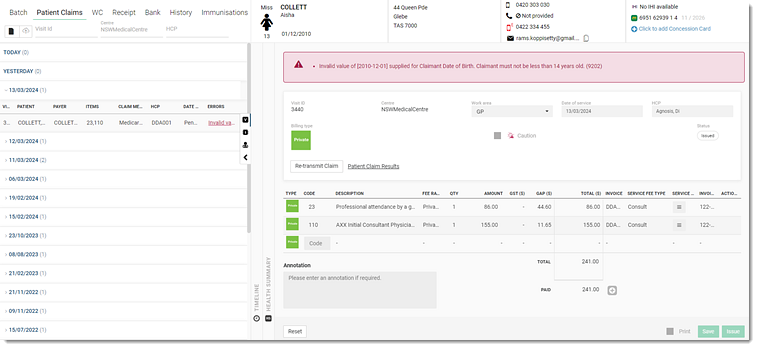
Alternatively, locate the patient claim and hover the mouse over the Errors column or click the error message.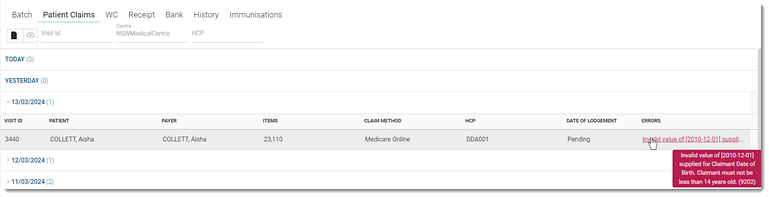
-
View and resolve the errors for the claim. For more information about error codes, see
Medicare digital claiming return codes:
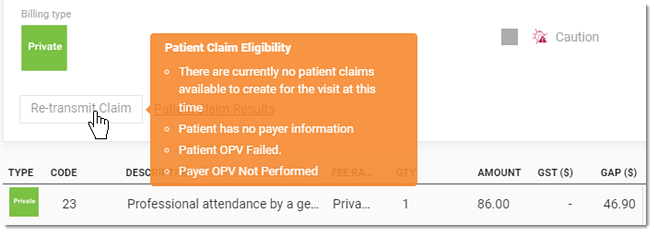
- If the Re-transmit Claim field is disabled, hover the mouse
over the Re-transmit Claim and view the eligibility conditions
for the claim.
- To view the patient claim summary, click Patient Claim Results. For more information, see Claim Summary.
- If required, add additional codes and click Save.
- If the Re-transmit Claim field is disabled, hover the mouse
over the Re-transmit Claim and view the eligibility conditions
for the claim.
-
After you have resolved the errors, click Re-transmit
Claim.
You are redirected to the claim method selection panel.

Results
Retransmitted claims are submitted to Services Australia again.
After the claim is successfully processed, it moves to the  Transmitted list.
What to do next
Transmitted tab. For more information, see Print or Download Transmitted Claims.