
Edit a Template
Edit HTML templates and add custom fields.
Before you begin
Permissions:
- Update Document Templates
About this task
When you edit a template, you can now modify any information on the template, including updating text, or adding or editing any fields.
In the following example, we will edit a template to automatically include the preferred contact method for patients in letters.
Procedure
To edit a template to include custom fields:
-
For the template you want to edit, click
 Edit.
Edit. 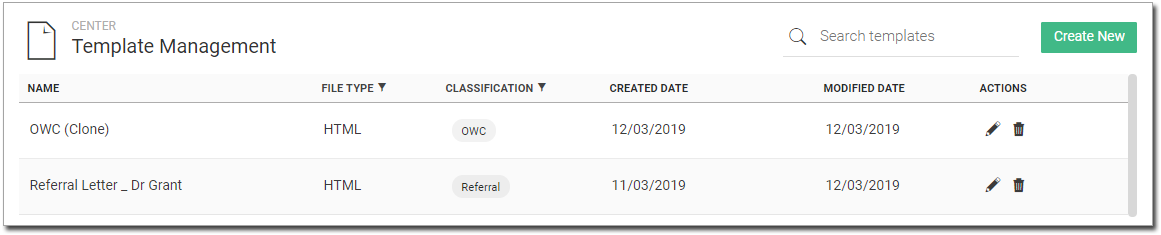
- From the Custom Content list, select the type of content you want to
add. For example, to add a preferred contact, select Check Box
Group.
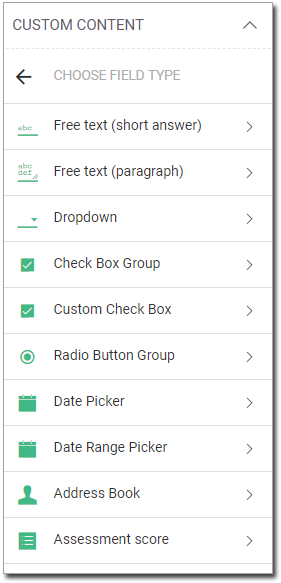
-
In the Options section, select how you want information
added to the letter:
- Text - enter text that will appear in each letter depending on whether you select the option or not. For example, you might pose the question Can the patient can be contacted on weekends?. When writing a letter, if the user ticks this question (confirming), the text that might appear in the letter might be This patient may be contacted on weekends. Alternatively, the false case might read This patient can be contacted only on weekdays.
- Cross - set to add a Cross check box or a blank check box in the letter.
- Tick - set to add a Tick check box or a blank check box in the letter.
- Select check box by default - set to add a check box
which is selected by default.
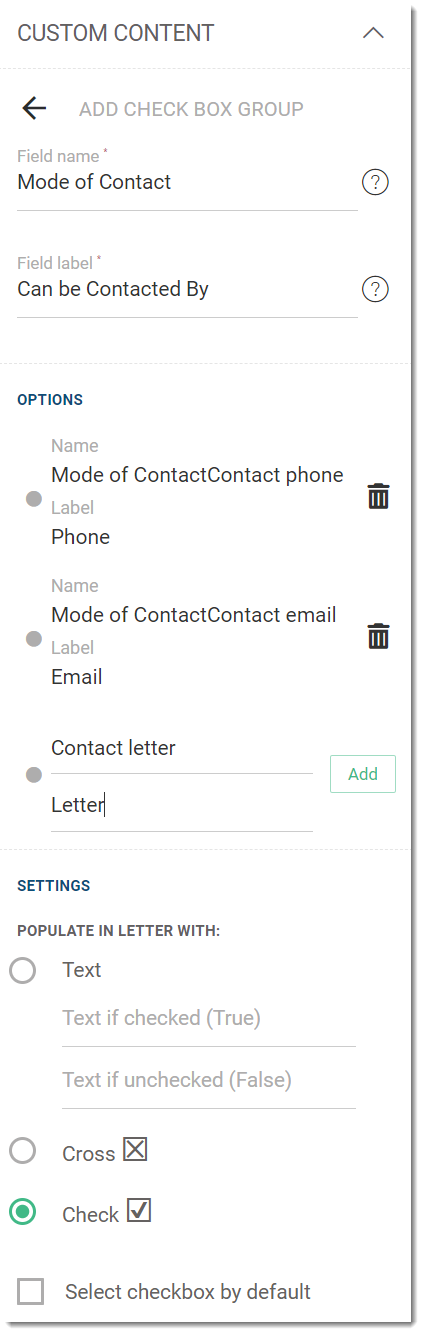
In our example, we have chosen the Check group option as in the example above.
- To display a preview of the added custom fields, click Preview.
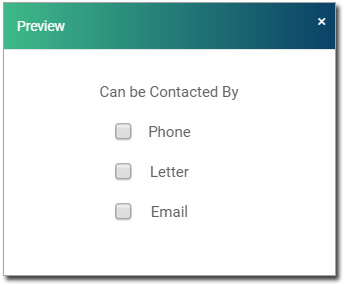
Results
The new custom field is listed in the Custom Content pane.
Add the new field to the template.
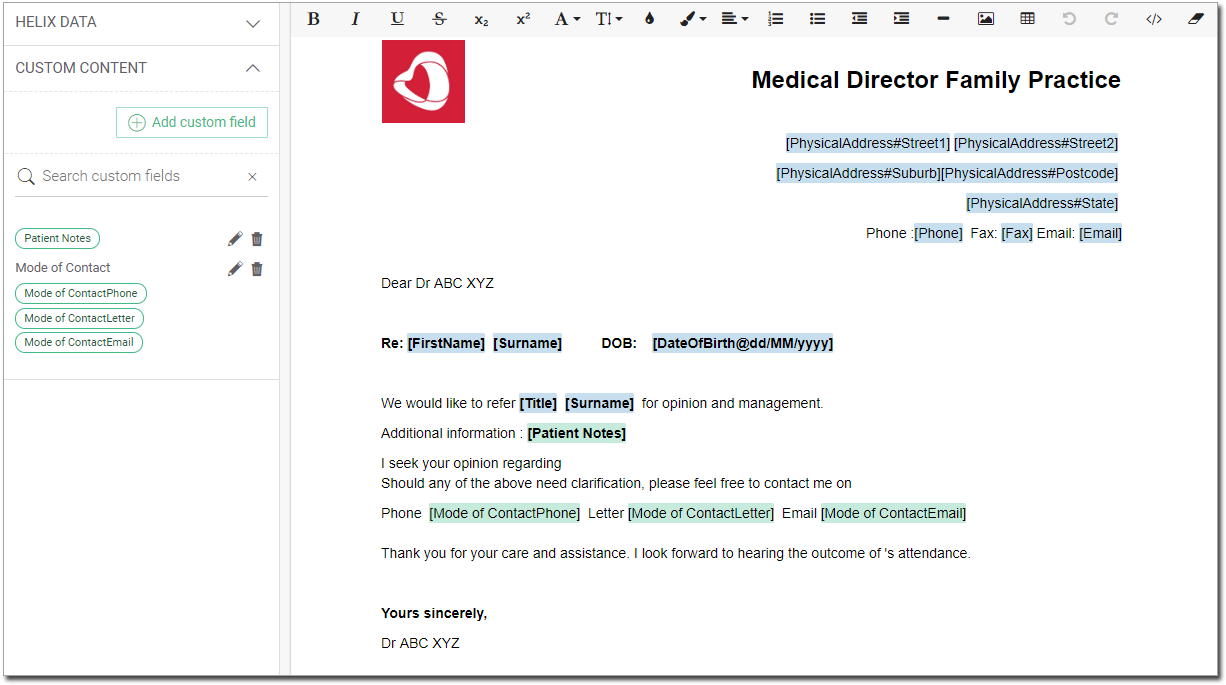
Custom fields are highlighted in Green.
What to do next
When the Healthcare Professional generates a letter using this template during the patient
consult, a form is presented for completing any user-defined fields found on the letter,
as shown below. In the letter values are highlighted in different colours depending on
whether they're from Helix data
fields or user-defined fields.
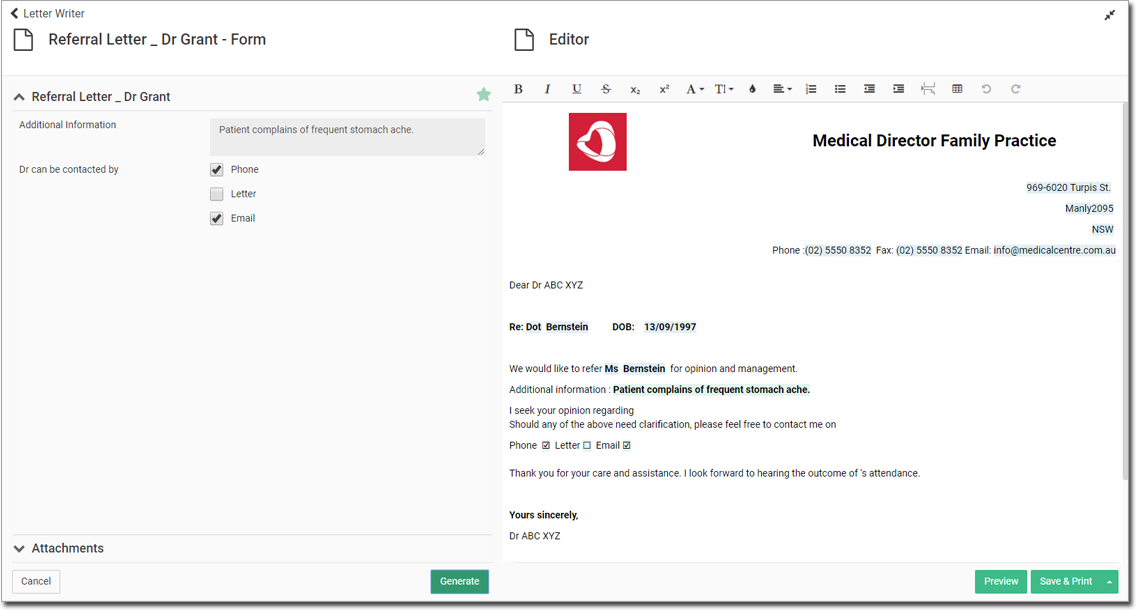
For more information about using templates in Letter Writer, see Letters.